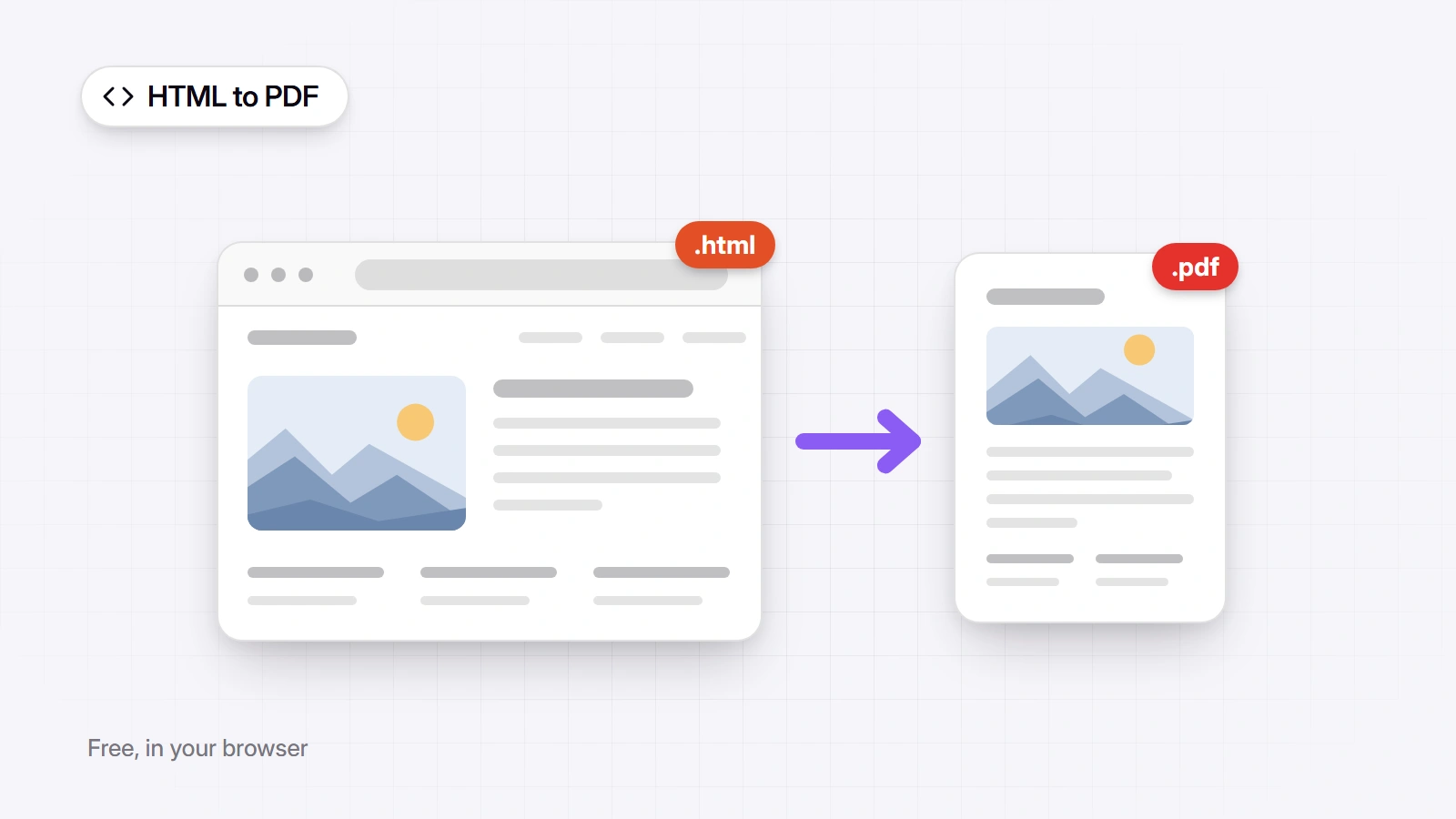
When is HTML to PDF the right tool?
A page saved from a browser, an order confirmation, a documentation page or a report your own system wrote as HTML, can be kept as a PDF with its words, tables and links. An EPUB e-book works too.
The tool reads only the file you drop. It does not open the live page, so what the page loads from the internet is not part of the PDF. A page that builds its content with scripts will show less than it does in a browser. For plain notes use Text to PDF, and for a Markdown file use Markdown to PDF.
What does each option do?
There is one setting for the page, and a second that only appears when you drop more than one file.
| Option | What you get |
|---|---|
| A4 | An A4 page with a half-inch margin. |
| Letter | A Letter page with a half-inch margin. |
| One PDF | All the files in one PDF named documents.pdf, in the order listed. Off, each file gets its own PDF, and the result offers Download all as a ZIP. |
What shows up, and what is left out?
- What is laid out. The page’s own HTML and styles, on A4 or Letter pages with half-inch margins. Text, tables and links come through.
- Scripts. They never run, so anything a script would add is not there.
- The web. Nothing is fetched. Pictures, styles and fonts that the page loads from the web are left out. Only what is inside the file shows, such as a picture saved into it, and the result tells you when something was left out.
- Page parts that are not printed. Forms, buttons, video, audio and frames are left out.
- An EPUB. It is laid out as Minda’s viewer shows it. The chapters run on with their pictures, with three-quarter-inch margins.
- How a page is made. Each page is drawn as a sharp picture, 192 pixels to the inch, saved as a JPEG. The page’s words sit under it as invisible text, so you can search, select and copy them. Web and e-mail links stay clickable. Links to places inside the document do not.
A worked example
order-confirmation.html was saved from a shop. It has a heading, a table of the items ordered, a logo saved inside the file, a Track order button, and a stylesheet that the page loads from the shop’s own server. You want a Letter copy for your records.
- Drop
order-confirmation.htmlon HTML to PDF, or press Choose files. - Choose Letter.
- Press Convert to PDF. The result says that something the page loads from the web was left out.
- Press Download PDF. The file is named
order-confirmation.pdf.
Why did it not work?
| What you see | Why | What to do |
|---|---|---|
| is not a file HTML to PDF takes | The type is not .html, .htm, .xhtml or .epub. | Drop a file of one of those types. |
| could not be read | The file is damaged, locked with a password, or not what its name says. | Open it in its own app, save a copy, and convert that copy. |
| The file is over 5 MB, more than Minda prints as a web page | An .html file over 5 MB is refused. | Take the large pictures out of the page, or print the page from your browser. |
| This file holds no web page | The file has no web page in it. | Check that you picked the right file. A plain text file goes to Text to PDF. |
| The document is more than 300 pages long once laid out | A page or book is laid out on 300 pages at most. | Split the file into smaller parts and convert each. Join the PDFs with Merge PDF if you need one. |
| HTML to PDF isn’t available on this screen | The screen has no reader. It is not Minda Files or Minda Files for Chrome. | Open Minda Files in your browser. |
| The pages look plain, or a picture is missing | Styles, fonts and pictures that the page loads from the web are left out. | Use a copy of the page that has them inside the file, or print the page from your browser. |
Limits
One run takes up to 50 files. Signed out, each file can be up to 10 MB. Signed in on the free plan, the limit is 20 MB, and the Files plan and Pro open files up to 256 MB. A browser page holds at most 256 MB for one file and for all of a run’s files together. An .html file over 5 MB is refused, and a page or book is laid out on at most 300 pages.
Is my file uploaded?
No. Your browser reads the file, lays the page out, draws each page and writes the PDF on your own computer. The page is never opened on the web, and its scripts never run. The tool uses no AI, needs no account and spends no credits.
The one exception is Ask AI, the chat beside an open file: when you use it, what you ask and the text it needs go to Minda AI.
Limits
- It reads the file only. Scripts do not run, and pictures, styles and fonts that the page loads from the web are left out.
- Forms, buttons, video, audio and frames are left out.
- An .html file over 5 MB is refused.
- An EPUB is laid out as Minda’s viewer shows it, in one flow with its pictures, not as an e-reader would page it.
Questions
Do scripts run when the page is converted?
No. Scripts never run, so anything a script would add to the page is not in the PDF. A page that is mostly built by scripts can come out short.
Why are the forms and buttons missing?
Forms, buttons, video, audio and frames are left out of the PDF. The text, tables and links around them stay.
Are the links in the PDF clickable?
Web and e-mail links stay clickable. Links to places inside the same document do not.
Which paper size does an EPUB use?
A4 or Letter, as you choose. The chapters run on with their pictures inside three-quarter-inch margins, as Minda’s viewer shows the book.