Why convert the PDF instead of NotebookLM’s own PowerPoint?
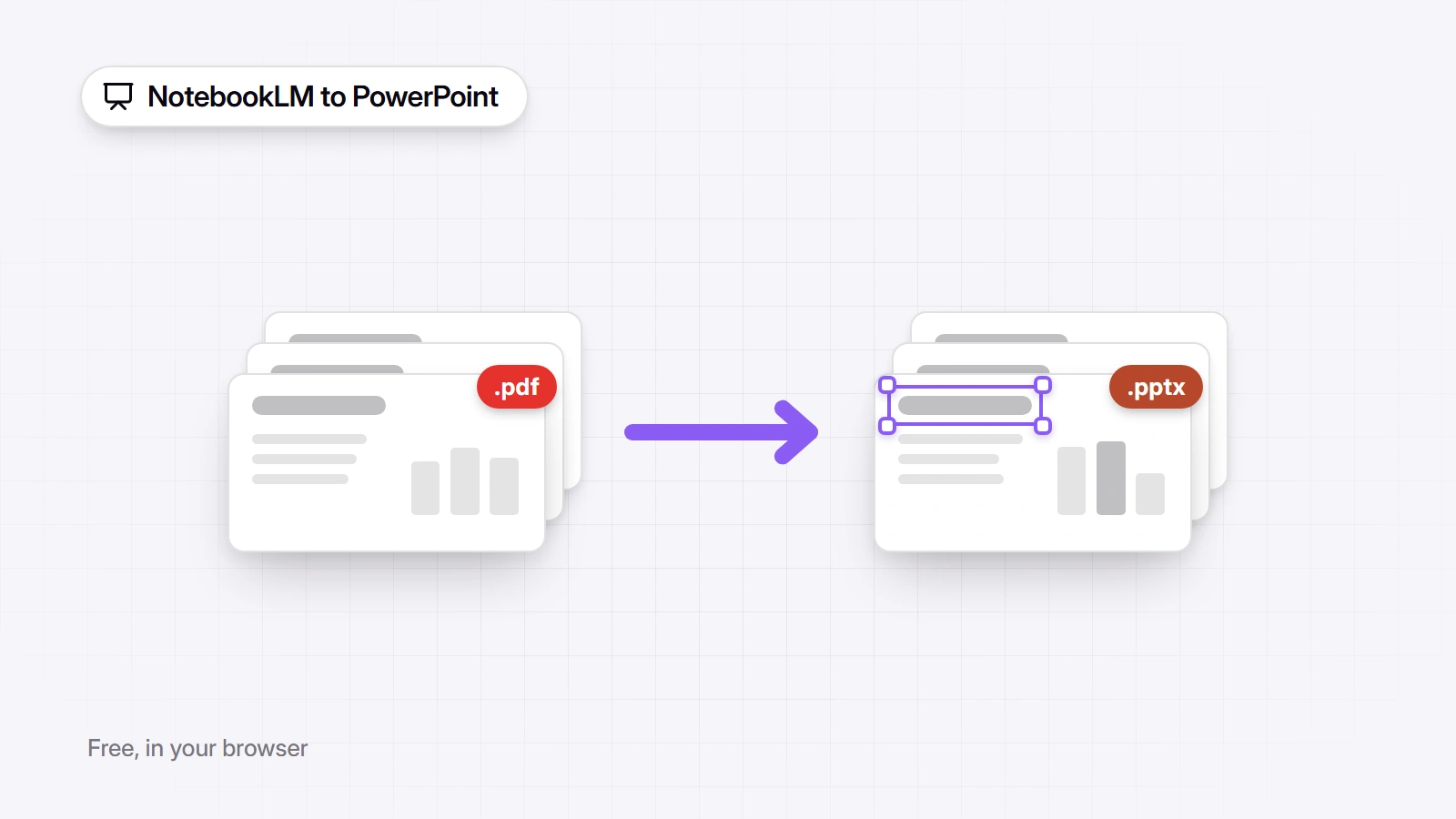
NotebookLM can download a deck as a PowerPoint file and as a PDF. If its own .pptx looks like the deck you saw and its words can be selected, keep it. When the file looks different, or its words will not select, convert the PDF here. Each slide is then your page exactly as you saw it, with its words set as text boxes you can change.
Gemini Notebook is NotebookLM’s new name. The deck downloads the same way and converts the same way.
How do I get the PDF out of NotebookLM?
- In NotebookLM (Gemini Notebook), open the notebook’s Studio panel and make or open the Slide Deck.
- Open the deck’s three-dot menu and choose Download PDF Document (.pdf).
- Keep the file where you can find it, for example
Climate-briefing.pdf.
What does each option do?
This page opens PDF to PowerPoint with Editable text and Read picture pages with Minda AI already on, because NotebookLM exports every slide as a picture. The options are the same ones the PDF to PowerPoint guide covers.
| Option | What it does here |
|---|---|
| Slides: Editable text (on) | Each page’s words become text boxes over the page drawn without them, each in its color, with the bold, italic and typeface Minda AI saw. |
| Read picture pages with Minda AI (on) | Sends a picture of each slide to Minda AI so it can read the words. Needs a free account and Minda AI credits. |
| Slides: Pictures | Each slide stays one picture, as NotebookLM drew it. Nothing becomes editable, so choose it only when you want the deck as pictures. |
A worked example
You have downloaded Climate-briefing.pdf, a fourteen-slide deck from NotebookLM, and you want to fix a title and reword two bullets.
- Drop
Climate-briefing.pdfon NotebookLM to PowerPoint. - Check that Editable text and Read picture pages with Minda AI are on. Sign in if you are not, which is free.
- Press Convert to PowerPoint. Each slide is drawn and sent to Minda AI in turn, and a line under the button counts the steps.
- Read the note on the result card. It says how many picture pages Minda AI read, and asks you to check their words against the page.
- Press Download PPTX. The file is
Climate-briefing.pptx. Open it and check each slide: titles, bullet text and the labels on any diagram. - For Google Slides, upload the
.pptxto Google Drive and open it there.
Why did it not work?
| What you see | Why | What to do |
|---|---|---|
| The picture pages stayed pictures: Sign in to your Minda account | You are signed out, and reading the words needs an account. | Sign in, free, and run again. |
| The picture pages stayed pictures, with another reason | Minda AI gave its own reason, such as no credits or no model answering. | Check your Minda AI credits, or try again later. |
| Some slides stayed pictures after a note about Minda AI’s limit per run | The deck is longer than one run reads. | Cut the deck with Split PDF and convert each part. |
| A word is wrong, or a text box sits off | A model read the slide, so it can slip. | Fix it in the editor or in PowerPoint. The note asks you to check each slide. |
| Words inside a photo or logo are not editable | Minda AI is asked to skip words that belong to a photo or a logo. | Retype them in a new text box in PowerPoint. |
Limits
Minda AI reads at most 40 picture pages in one run, so a longer deck needs splitting first. Signed out, a file can be up to 10 MB. Signed in on the free plan, the limit is 20 MB, and the Files plan and Pro open files up to 256 MB. The tool takes one file at a time.
Is my file uploaded?
The PDF itself is not. Your browser reads it and writes the .pptx on your computer. But this page starts with Read picture pages on, so each slide’s picture goes to Minda AI to be read. It is a JPEG with its long side at most 1,600 px, sent while you are signed in, and it uses your Minda AI credits.
Turn the option off and nothing leaves the page.
Limits
- It does not make charts, diagrams or photos editable: they stay part of each slide’s picture.
- It does not remove the Made with NotebookLM mark.
- Minda AI reads at most 40 picture pages per run, and what it reads should be checked against the slide.
Questions
How do I get my NotebookLM slide deck into PowerPoint?
Download the deck from NotebookLM as a PDF, drop it on NotebookLM to PowerPoint and press Convert to PowerPoint. Each page becomes a slide with its words as text boxes that Minda AI read, in a .pptx that PowerPoint, Keynote and the editor open.
How do I make NotebookLM slides editable in Google Slides?
Convert the PDF here, upload the .pptx to Google Drive and open it with Google Slides. Google turns it into a Slides presentation with the words as text boxes.
Does Minda Files remove the NotebookLM watermark?
No. The Made with NotebookLM mark is part of each page’s picture, so it stays in the slide. Minda Files converts your deck and does not take off another product’s mark.
Does this work for Gamma and Canva decks exported as PDF?
Yes. A Gamma or Canva deck exported as PDF converts the same way. Pages with text inside become editable at once, and pages that are pictures are read by Minda AI when the option is on.